A Google Business Profile, previously called Google My Business, allows an eligible business to manage how it appears across Google Search and Google Maps.
A properly completed profile can help local customers find essential information such as your opening hours, telephone number, services, location and website. It also gives customers somewhere to read reviews, view photographs and request directions.
Creating the profile is free, but verification may take longer than the initial setup. This guide explains how to create, verify and maintain a Google Business Profile in 2026.
Jump To
- What You Need Before Starting
- Checking Your Eligibility
- Creating Your Google Business Profile
- Verifying Your Business
- Completing Your Profile
- Adding Photos, Services And Products
- Adding Booking And Contact Links
- Publishing Posts And Updates
- Requesting And Replying To Reviews
- Checking Profile Performance
- Ownership And Ongoing Management
- Common Google Business Profile Mistakes
What You Need Before Starting
Collecting the correct information before creating the profile will make the process easier and reduce the risk of inconsistencies.
- A Google account controlled by the business owner
- Your genuine trading name
- Your business address, where applicable
- A public telephone number
- Your complete website address
- Your normal and special opening hours
- An accurate primary business category
- A square logo and suitable business photographs
- A short description of the business
- A list of the services or physical products you provide
- Evidence that may be needed during verification
Useful verification evidence might include external signage, branded vehicles, tools, stock, access to staff-only areas or non-sensitive business documents. The exact evidence required depends on the verification method Google provides.
Checking Your Eligibility
Google Business Profiles are intended for businesses that make in-person contact with customers during their stated opening hours.
You may be eligible if:
- Customers visit your shop, clinic, restaurant or staffed office
- You travel to customers to provide a service
- You operate as a hybrid business, serving customers both at your premises and at their locations
Online-only businesses, lead generation companies and properties that are simply available to rent are generally not eligible. A virtual office is not normally suitable unless it is permanently staffed by your own team during opening hours, has appropriate signage and receives customers there.
Storefront Businesses
If customers visit your premises, you can normally display the address. Make sure the business name and address match your real-world signage and other official information.
Service-Area Businesses
If you work from home or travel to customers, hide the address if customers do not visit you there. You can then select the towns, postcodes or areas you genuinely cover.
Google currently allows up to 20 service areas and advises that the overall area should generally remain within around two hours’ driving time of the business base. Adding distant locations does not give you an office or physical presence in those areas.
Creating Your Google Business Profile
Step 1: Search For An Existing Profile
Before creating anything new, search Google and Google Maps for your business name, telephone number and address. Google may already have generated a listing, or a previous employee or agency may have created one.
If the correct listing appears, select the option to claim or manage it. If another person already controls the profile, you may need to request ownership rather than creating a duplicate.
Step 2: Add Your Business
If no suitable profile exists, visit the Google Business Profile setup page and follow the instructions.
Enter your genuine business name as customers see it in the real world. Do not add extra services, towns, telephone numbers or marketing phrases unless they are genuinely part of the trading name.
Step 3: Choose Your Primary Category
Select the category that most accurately describes the main activity of the business. A specific category such as “Roofing contractor” is generally more useful than a broad category such as “Contractor”.
You can add relevant secondary categories later, but avoid selecting categories for services you do not provide.
Step 4: Choose Your Business Type
Tell Google whether customers visit your premises, whether you visit them, or whether both apply. This determines whether your address can appear publicly and whether you should add service areas.
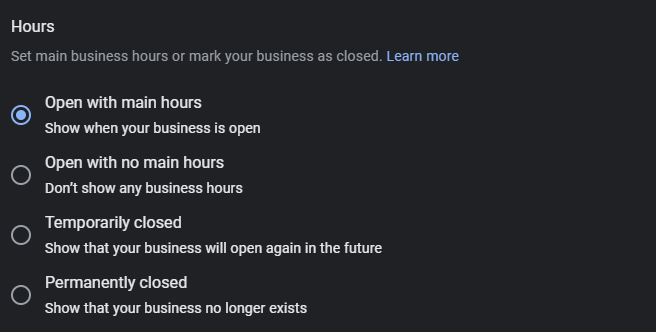
Step 5: Add Your Contact Details And Hours
Enter your main telephone number, website address and usual opening hours. Only show hours when customers can genuinely receive the stated service or contact the business.
Use special hours for bank holidays, seasonal changes and temporary closures. Some categories can also add separate hours for services such as collection, delivery or appointments.
Verifying Your Business
Google automatically decides which verification methods are available. You cannot always choose an alternative simply because it is more convenient.
Depending on the business and information available, verification may involve:
- A recorded video
- A live video call
- A telephone call or text message
- An email
- A postcard sent to the business address
Google may require more than one method. After you complete the requested steps, its review can take up to five working days, although some profiles are approved more quickly.
Preparing For Video Verification
If Google requests a video, you may need to demonstrate:
- The business location and surrounding street
- Permanent signage or branding
- Products, equipment, vehicles or tools used by the business
- Your authority to operate the business
Record the evidence Google requests in one continuous video. Avoid showing confidential documents, customer information or anything unrelated to verification.
Never share a verification code with another person. Google states that it will not ask you to give the code to someone else, including a person claiming to manage your profile.
Completing Your Profile
Once the profile is available to manage, complete each relevant section accurately. More information is only useful when it is correct.
Write A Clear Business Description
The business description can contain up to 750 characters. Explain what the business provides, who it serves, where it operates and any relevant history or specialisms.
Do not include website links, HTML, current offers, prices or sales-focused wording in this field. Avoid repeating the same location or service several times.
Example:
Athena Media provides WordPress web design, search engine optimisation, website hosting and ongoing maintenance from Huddersfield, West Yorkshire. We work closely with businesses that need a clear, reliable website and straightforward digital support. Each project is planned around the client’s requirements, customers and long-term goals.
Add Relevant Attributes
Available attributes depend on your category and location. They may cover accessibility, facilities, payment options, parking, seating or other practical details.
Select only attributes that genuinely apply. Some information may also be suggested by Google or contributed by users.
Adding Photos, Services And Products
Business Photos
Photographs help customers understand what to expect before visiting or making contact. Add clear, recent images that accurately represent the business.
Suitable images may include:
- Your logo and cover image
- The exterior and entrance to your premises
- Interior areas customers will use
- Members of your team
- Completed work or current physical products
- Parking, access and nearby landmarks
Avoid misleading photographs, excessive graphics and stock images that do not show the actual business. Customers can also upload photographs, so review the profile periodically and report anything that breaches Google’s policies.
Services
Service businesses can use the services editor to add relevant services, descriptions and prices where appropriate. Keep each entry clear and avoid creating several near-identical versions purely to repeat search phrases.
Your categories and services help Google understand the business, but adding a long list of loosely related services will not necessarily improve visibility.
Physical Products
The product editor is intended for eligible local shops that sell physical goods. It can be used to display product images and information on Google Search.
If you sell services rather than physical goods, use the services editor instead of creating artificial product listings.
Adding Booking And Contact Links
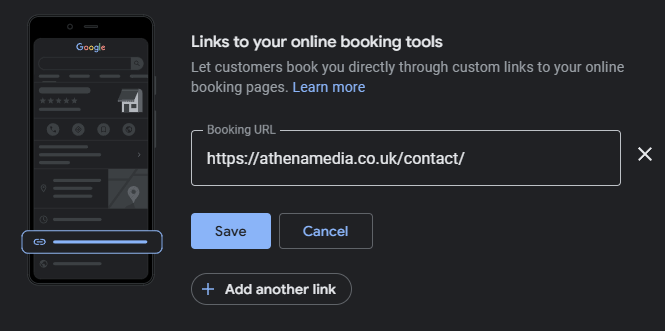
Some business categories can add links for appointments, reservations, menus or online orders. Where the option is available, link directly to the page where the customer can complete the relevant action.
If you take appointments through your website, use the correct booking page rather than sending every visitor to the homepage. If you rely on enquiries, a clear website contact page may be more appropriate.
Text And WhatsApp Options
Google’s previous built-in Business Profile chat and call-history features closed in 2024. However, eligible verified profiles in supported regions may now be able to add a text message or WhatsApp contact option.
Only enable these options if someone can monitor and answer them. Availability varies by business and region, so they may not appear on every profile.
Social Media Links
Some profiles can add links to platforms including Facebook, Instagram, LinkedIn, TikTok, YouTube and X. Availability varies, and Google may also identify social profiles from information elsewhere online.
Publishing Posts And Updates
Google Business Profile posts can share updates, offers and event details. Depending on the device and profile, these may appear in the Updates, Overview or From the owner sections.
Useful subjects include:
- New services or products
- Temporary changes to the business
- Events and booking information
- Seasonal reminders
- Current offers with clear terms
- Recent work or business news
There is no official posting frequency that guarantees better rankings. Publish when you have something timely and useful to communicate, and remove or update information when it is no longer accurate.
Requesting And Replying To Reviews
Reviews help potential customers understand other people’s experiences. Google allows businesses to share a review link or QR code, but the request must not attempt to control the rating or wording.
Ask genuine customers fairly rather than approaching only those you expect to leave five stars. Do not offer discounts, gifts, competition entries or other incentives in return for a review.
Simple Review Request:
Thank you for choosing us. If you would like to share your experience, you can leave an honest Google review here: [review link]. Your feedback helps other customers make an informed decision.
Replying To Positive Reviews
Thank the customer and respond naturally. Avoid using every reply as an opportunity to repeat services or locations.
Thanks for taking the time to leave a review, Sam. We’re pleased you were happy with the work and appreciate your feedback.
Replying To Critical Reviews
Remain calm, acknowledge the concern and offer a sensible way to continue the conversation privately. Do not publish personal information or argue about confidential details.
We’re sorry to hear that your experience did not meet expectations. Please contact us directly with the relevant details so we can look into what happened and discuss it properly.
Replying thoughtfully shows readers that the business pays attention to customer feedback. It does not require you to agree with every claim made in a review.
Checking Profile Performance
Verified owners and managers can use the Performance section to see how people discover and interact with the profile.
Depending on the type of business and enabled features, available information may include:
- Profile views on Search and Maps
- Search terms used to find the business
- Requests for directions
- Clicks on the call button
- Website clicks
- Bookings, messages, products, menus or offers
Not every metric is available to every profile. Treat this information as a guide rather than a complete record of leads or sales. Website analytics and enquiry tracking can provide more context.
A Google Business Profile works most effectively when it supports a wider search engine optimisation strategy. Our guide to local SEO for Huddersfield businesses explains how your profile, website and local information can work together.
Ownership And Ongoing Management
Keep Primary Ownership
The business owner should retain primary ownership of the profile. Staff members or an external agency can be added using the appropriate owner or manager permissions.
Do not share the password for the main Google account. If several people manage multiple profiles, a Business Profile group may provide a more secure arrangement.
Keep Information Accurate
Review your profile whenever something changes, including:
- Opening and holiday hours
- Telephone numbers and website links
- Business categories and services
- Booking arrangements
- Premises or service areas
Keep your business name, address and telephone details accurate across your website and important business listings. Minor formatting differences are less important than making sure the underlying information is correct.
Avoid Unnecessary Major Edits
Changes to important information such as the business name, address or category may trigger another verification request. Check everything carefully before saving major changes.
Common Google Business Profile Mistakes
- Adding search phrases to the business name: use the real trading name shown on signs, stationery and official materials.
- Displaying a home address: hide it if customers do not visit the property.
- Creating several profiles for one business: check for existing listings before creating another.
- Using an unsuitable category: select the category that most closely describes the main business activity.
- Adding excessive service areas: include only areas the business can realistically serve.
- Using products to list services: service businesses should use the services editor.
- Requesting only positive reviews: invite genuine customers to leave honest feedback without influencing the rating.
- Offering review incentives: discounts, gifts and payments in exchange for reviews are prohibited.
- Sharing account passwords: add trusted people as managers or owners instead.
- Ignoring profile suggestions: periodically check for user or Google-suggested changes to your details.
Final Thoughts
A Google Business Profile can make important business information easier to find in Google Search and Maps. Its value comes from accuracy, genuine customer feedback and ongoing management rather than trying to add as many locations or search phrases as possible.
Your profile should also lead visitors to a clear, useful website that supports the information they have already seen. If your website needs improving, explore Athena Media’s web design services.
If you need help connecting your Google Business Profile with a wider local search strategy, contact Athena Media for practical advice.